When to upload SVG files to Canva
Ok so your designer gave you SVG files of your logo, icons, or another graphic - and you can’t even preview them on your computer?! What do you do with those files?
I’m here to walk you through it. Why listen to me? I’m a graphic designer and typographer with 10 years of experience, and unlike many designers out there, I actually utilize and enjoy Canva daily. It’s a powerful tool that many of my clients use, so I like to make the designs I create for them to be easy to use.
Ok so back to SVGs. If you don’t have any design programs on your computer, you won’t see a little preview in the file icon. Note the file name and upload those to Canva.
If you’ve worked with me, you’ll get all logo variations in SVG, as well as accents and icons.
What is an SVG file?
And SVG file is vector based, which means the image it contains is actually built in math and coordinates - not flat pixels. When a pixel based image (like a JPG or PNG) is scaled, it becomes pixelated, aka, each dot grows larger, and up close - it doesn’t look good. JPGs and PNGs are meant to be used on web or print at the size they’re exported in.
VS a vector based file - it can be resized infinitely. Sometimes they’re less complex, often only a few colors or gradients. But a well crafted SVG file can actually be recolored in Canva.
Why this is helpful for business owners
You don’t want to manage 4 logo variations across 8 brand colors. That’s too much. Why not have ONE file for each design, and change the color when you need to? Sounds better, right?
That’s why I give my clients SVG files!
How to use them:
Upload SVG to Canva just like you would any image
Canva will allow you to preview what you uploaded, in the uploads side bar
Add the graphic to your design, and click it.
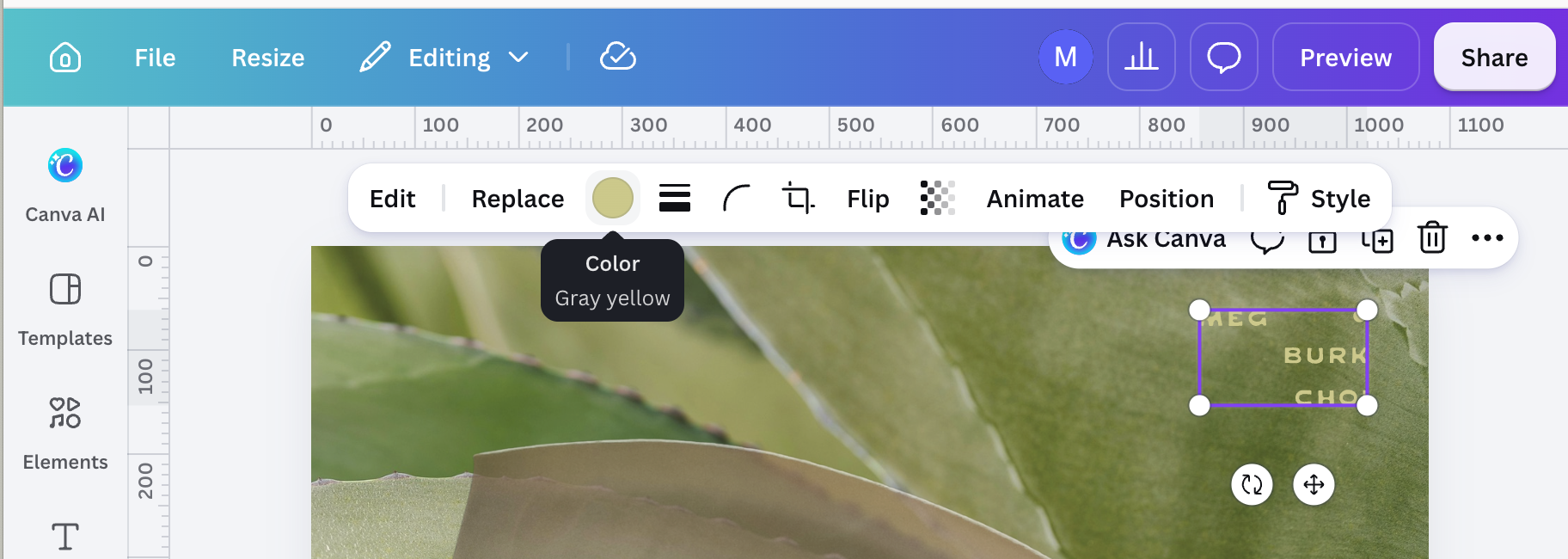
At the top you’ll see there is a spot for colors. You can pick one color and change it with eyedropper, hex code, or from your brand kit. When you click the color dot, it will slide out the colors sidebar.
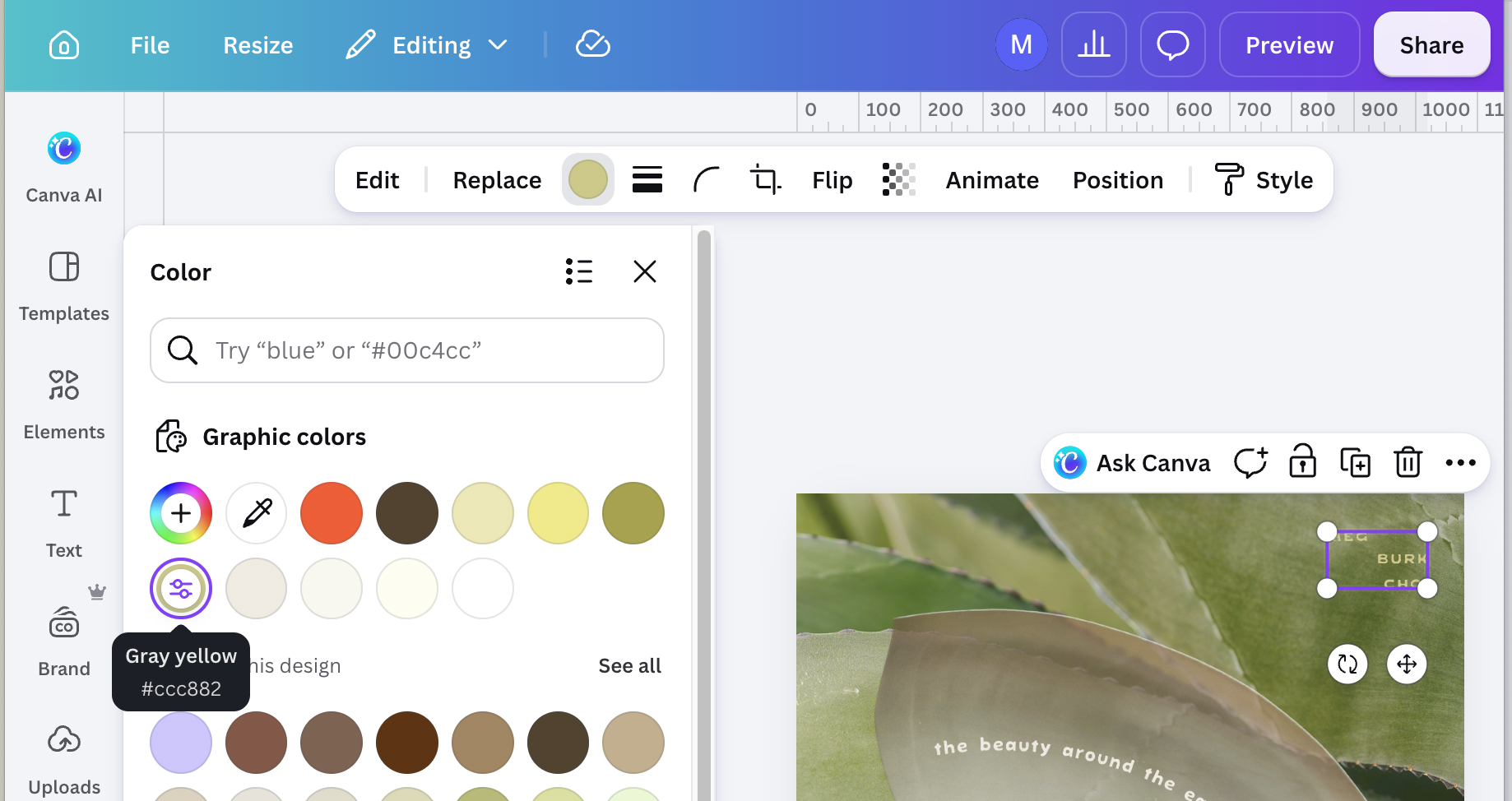
You can then click on the pre-selected color to change the color of the SVG graphic.
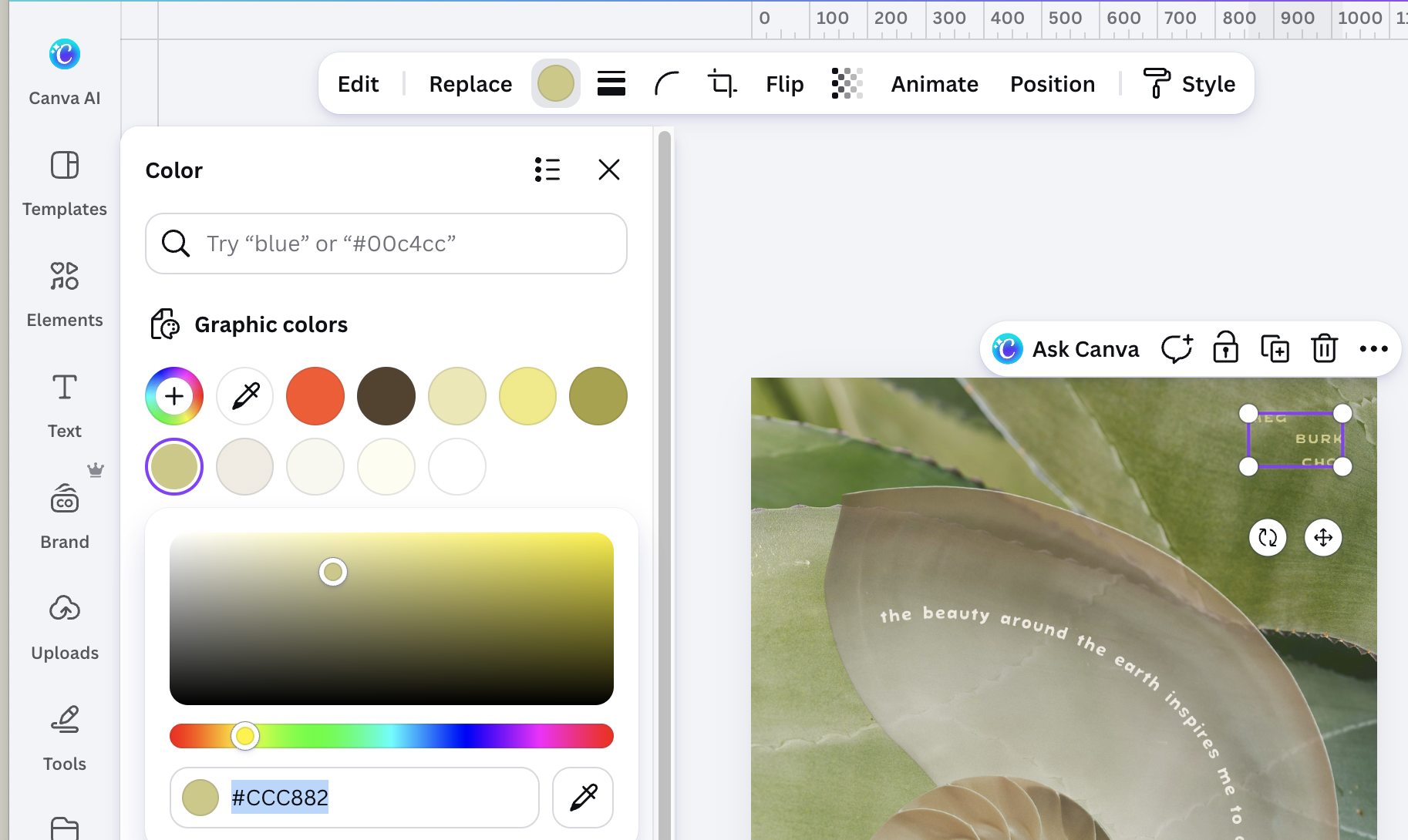
It really is that simple! SVG graphics are perfect for graphics of any size and application.
Enjoy designing!
Meg